
Upload Music
Supports MP3, WAV, OGG, M4A, AAC, and FLAC
From My Music
Select from your completed music

AI Vocal Remover
Upload a song, choose vocal removal, preview the separated vocals and instrumental, then download stems for karaoke, remixing, covers, or practice.

Vocal Remover Example
Preview vocal and instrumental separation
Hear the example as separate vocal and instrumental tracks before you upload your own song. Use the mixer to check clarity, mute parts, and understand what the AI Vocal Remover returns.
Vocal Remover Example
2 separated tracks
- 01Vocals+0.0dBLRVocals - Vocal Remover Example
- 02Instrumental+0.0dBLRInstrumental - Vocal Remover Example
What is a Vocal Remover
CraftMusic AI is a Vocal Remover that separates a song into vocals and an instrumental track so you can build karaoke versions, study performances, or prepare remix stems. The AI Vocal Remover focuses on a practical browser workflow: upload audio, run vocal separation, preview the result, and download the parts you need. Vocal removal cannot make every mix perfectly clean because vocals and instruments often overlap, but clear source audio gives you a faster starting point than manual EQ tricks or rebuilding the song from scratch.
Why This Vocal Remover Fits Real Music Workflows
Use a Vocal Remover online when you need quick vocal isolation, instrumental tracks, and editable stems without setting up desktop audio software.
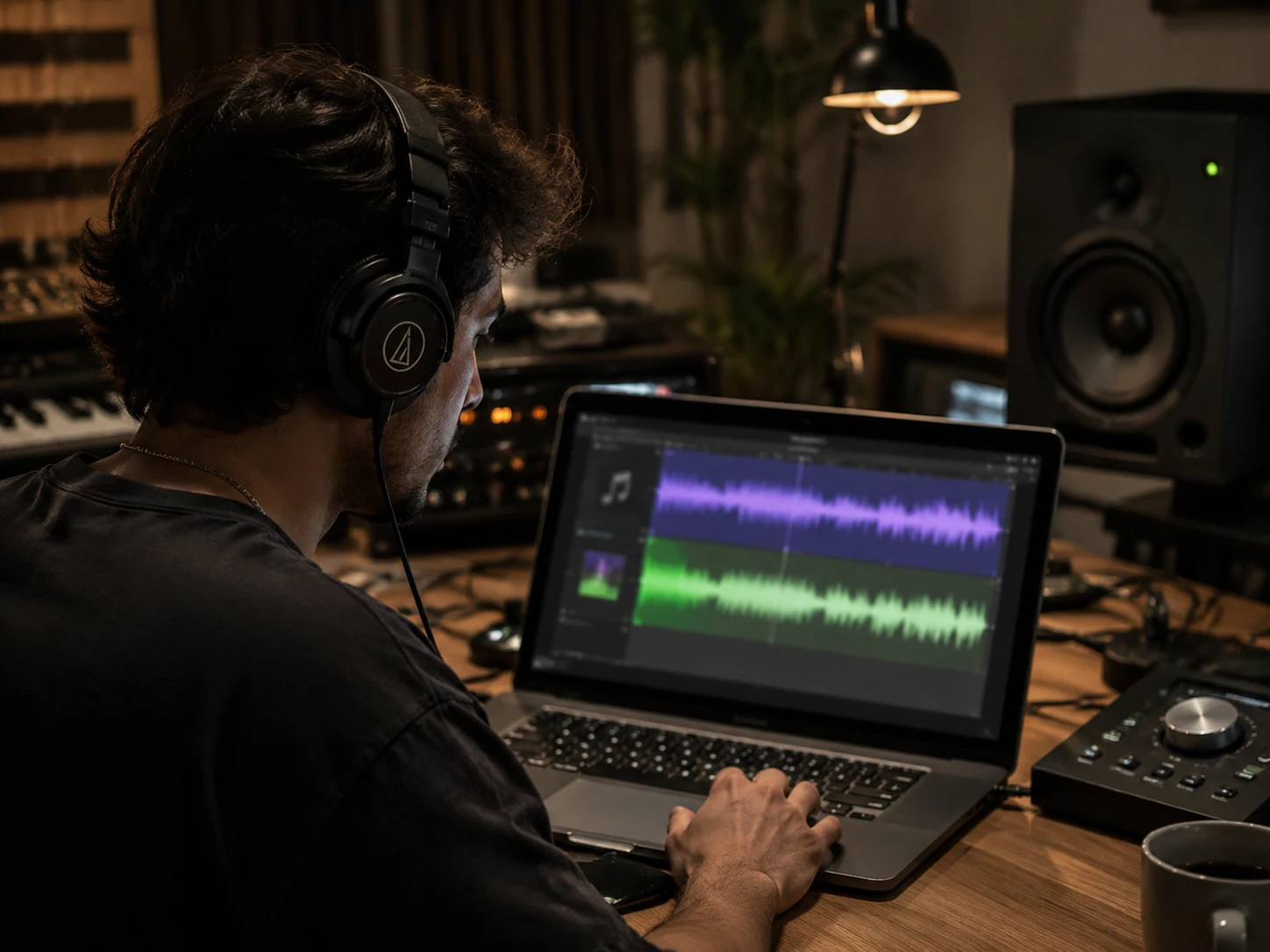
Separate Vocals And Instrumental Tracks
With CraftMusic AI, the Vocal Remover turns one uploaded song into separated vocals and an instrumental track you can actually use. The AI Vocal Remover is built for common jobs like karaoke practice, cover demos, remix sketches, and quick before-after checks. You get a clear workflow instead of a complicated audio editor.
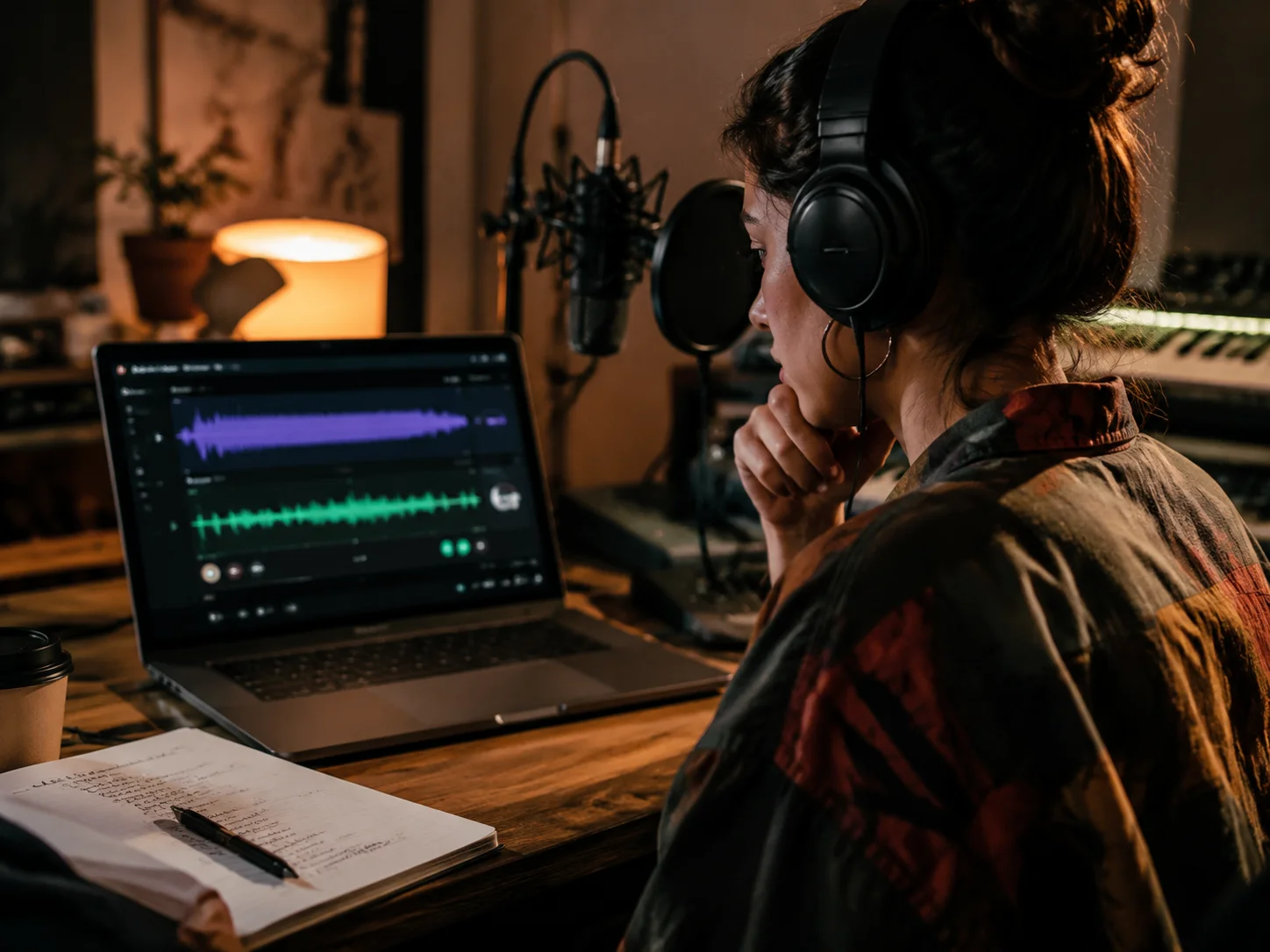
Preview Clean Acapella And Karaoke Outputs
A vocal separation result should be heard before it leaves the browser. Preview the isolated vocal, check the instrumental for leftover voice, and decide whether the track is ready for a karaoke track, acapella edit, or rehearsal file. Our AI separator helps you make that quality call early.
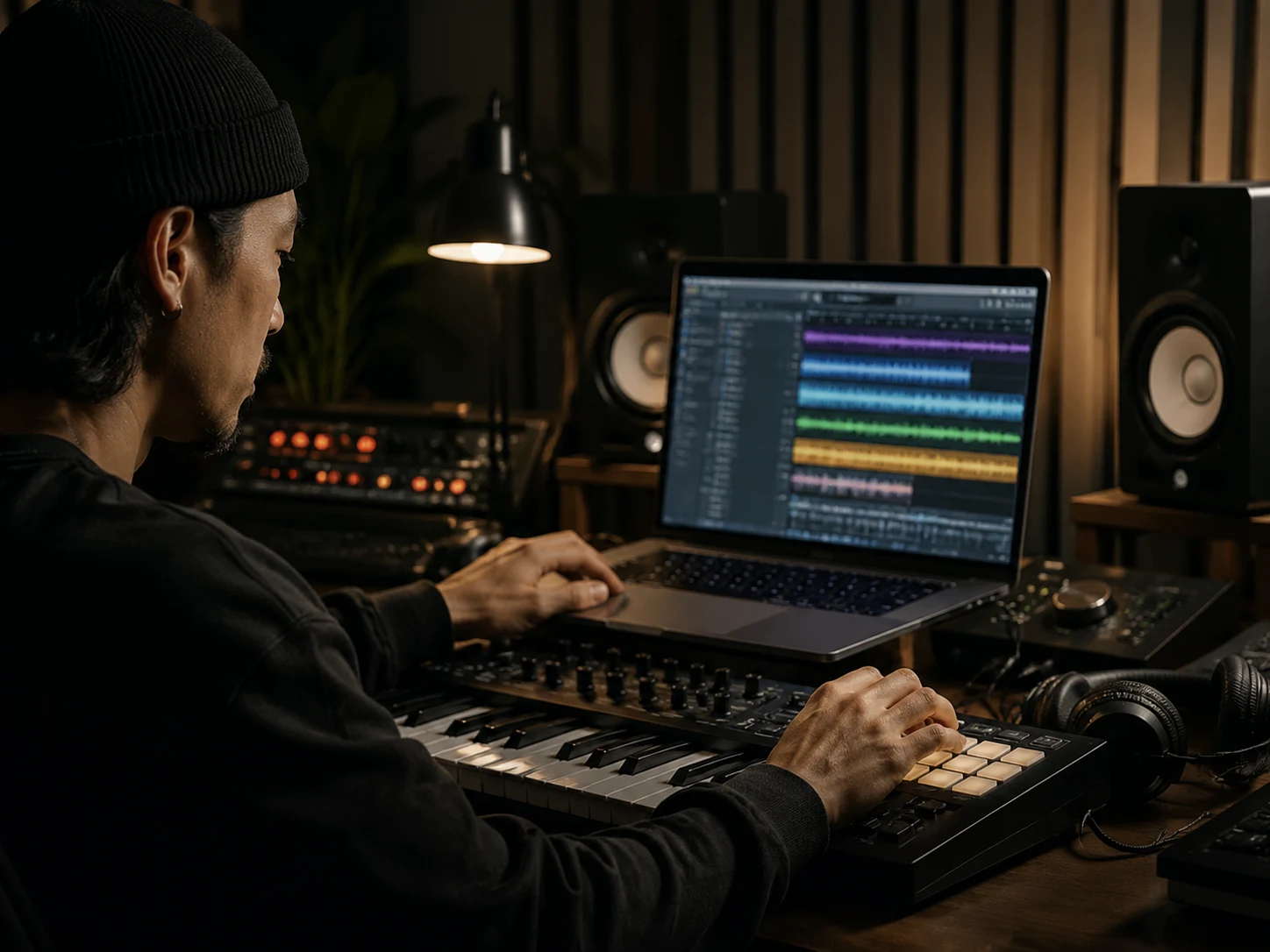
Split More Stems When The Mix Needs Detail
Some projects need more than a vocal and instrumental split. Use the same music editing workspace to move from the Vocal Remover into stem splitting for drums, bass, vocals, and other instruments. Producers can rebuild a groove, DJs can prep cleaner transitions, and students can hear parts that were buried in the full mix.

Work In The Browser Without Audio Setup
The browser workflow keeps the first step simple: upload audio, process the song, preview the output, and download stems. No plugin chain, no center-channel guesswork, and no manual filtering just to make a first instrumental. The Vocal Remover gives you a practical starting point for the next creative step.
Remove Vocals From A Song In Three Steps
With CraftMusic AI, the AI Vocal Remover keeps the upload, preview, and download workflow direct for songs, covers, and practice tracks.
Upload the source audio
Start with the cleanest file you have, such as an MP3, WAV, M4A, OGG, AAC, FLAC, or WMA recording. Open the tool, add your song, and keep the default vocal removal mode when you want vocals and instrumental outputs. Less background noise, heavy reverb, and distortion usually means fewer artifacts after separation.
Separate and preview the stems
Run the AI Vocal Remover and listen before you download. Previewing the vocals and instrumental helps you catch bleed, muffled cymbals, or leftover voice fragments before the file enters a rehearsal, DJ edit, remix session, or video project. If you need more detail, switch to stem splitting for drums, bass, and other parts.
Download the version you need
Save the instrumental for karaoke or cover practice, keep the isolated vocals as an acapella, or use the stems inside a DAW. The workflow gives you usable audio parts for editing, timing checks, arrangement ideas, and learning, while your final rights and usage still depend on the original song.
Who Gets The Most From Vocal Removal
The AI Vocal Remover helps creators who need vocals, instrumentals, acapellas, or stems for a specific task, not a generic audio effect.
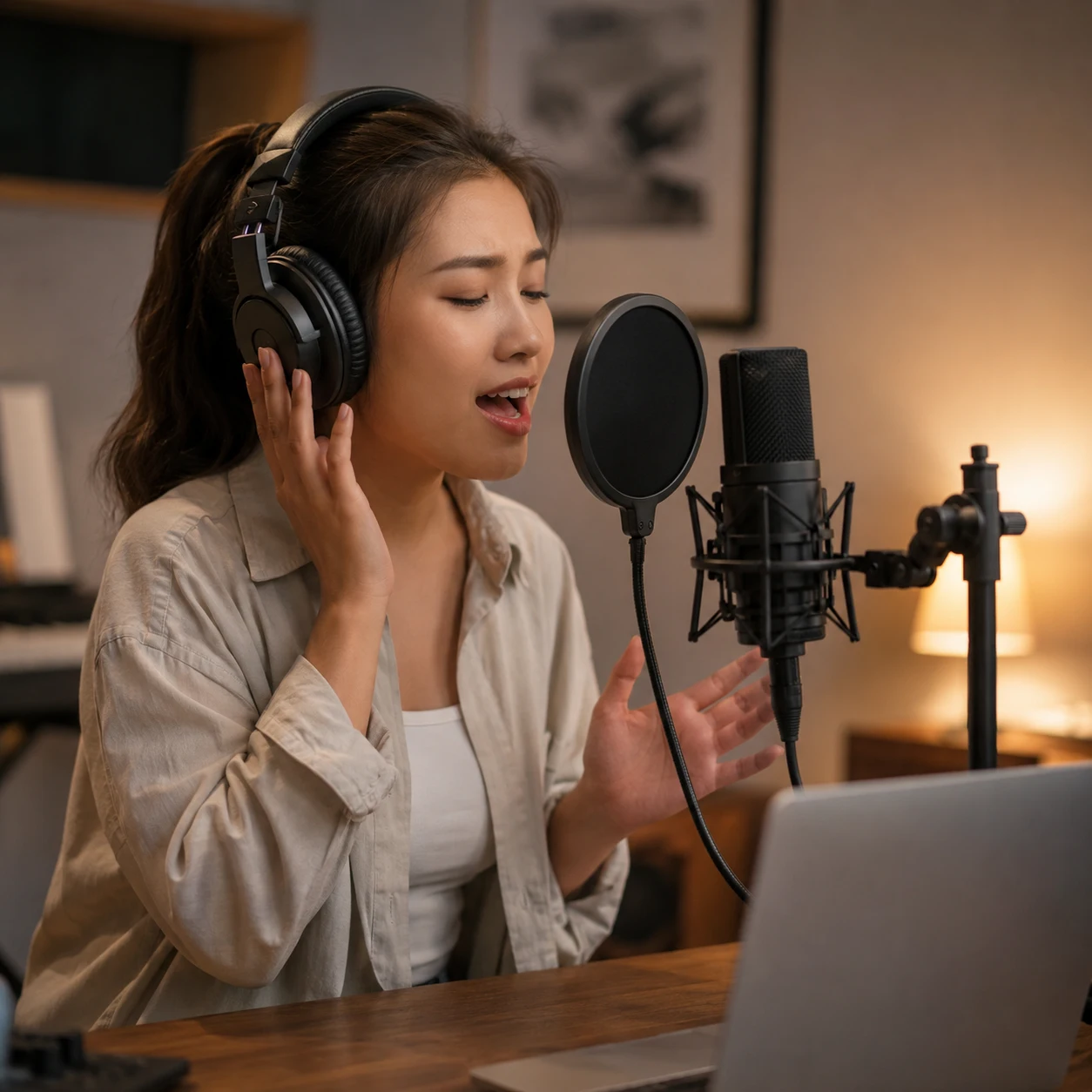
Karaoke singers and vocal students
Rehearsing over the original singer makes timing and pitch harder to judge. Use the Vocal Remover to create an instrumental practice track, then loop difficult sections until the phrasing feels natural. The separation result also gives teachers and students a quick way to compare the lead vocal against a backing track.
Producers remixers and beat makers
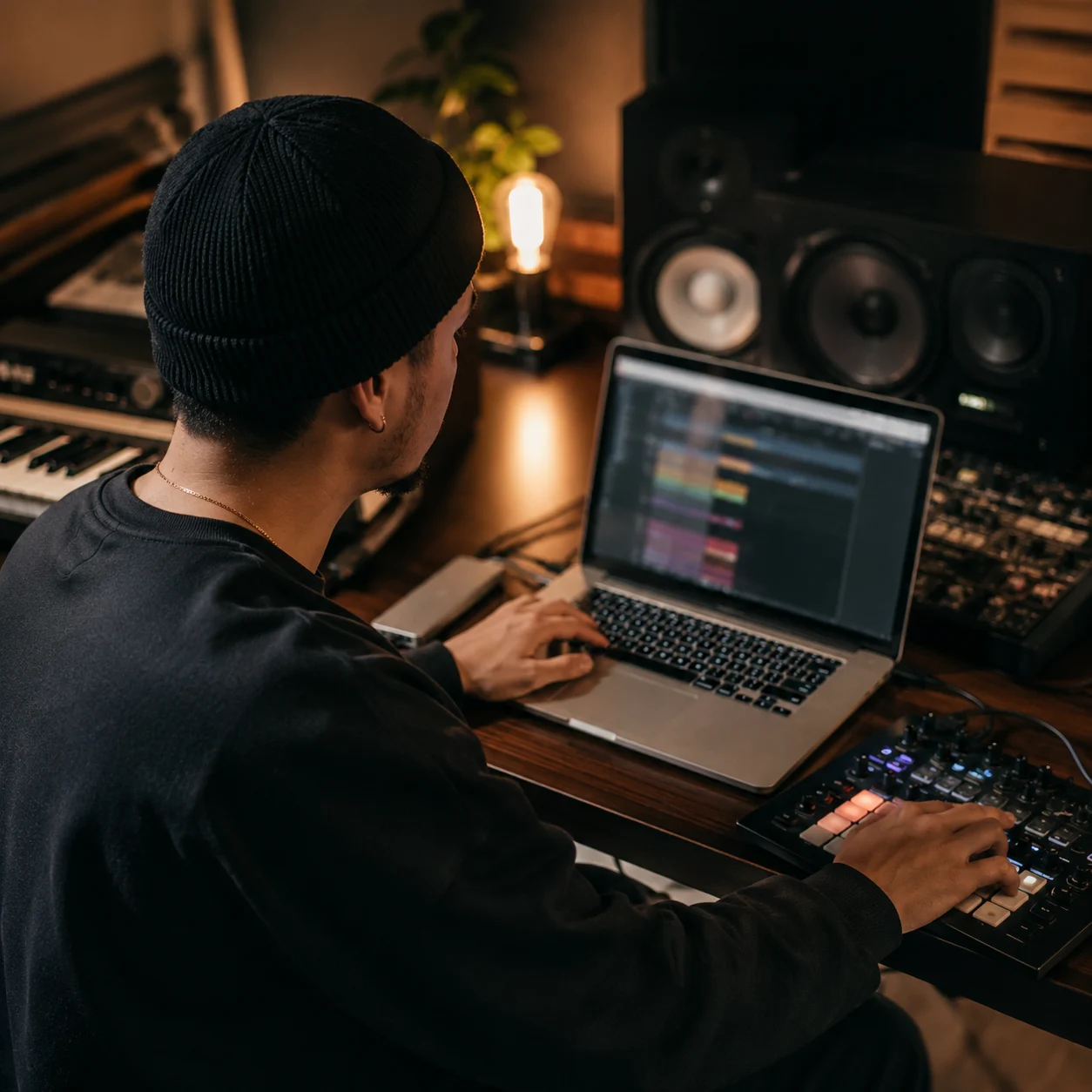
Remix ideas move faster when the vocal hook or instrumental groove is already separated. Use vocal removal to extract an acapella, test a new beat underneath it, or remove the original voice before rebuilding the arrangement. For deeper editing, continue with multi-stem splitting and move the files into your DAW.

Video editors and content creators
Client edits, short-form videos, and performance clips often need a cleaner music bed than the source file gives you. The AI Vocal Remover helps you make an instrumental version for background use, isolate vocals for timing, or preview a quieter mix before the edit reaches review.

DJs and live performers
A set edit can fall apart when the original vocal clashes with another track. Use vocal separation to prepare instrumental sections, acapella drops, intro loops, or quick practice files. Previewing the separation before download helps you avoid obvious artifacts in a club, rehearsal room, or livestream.
AI Vocal Remover FAQ
Answers about vocal removal, acapella extraction, karaoke tracks, stem separation, supported audio, previewing results, and realistic quality limits.
What is a Vocal Remover?
A Vocal Remover is a music editing tool that separates a song into a vocal track and an instrumental version. CraftMusic AI uses AI stem separation so you can create acapellas, karaoke tracks, cover practice files, and remix material from uploaded audio.
How does CraftMusic AI's AI Vocal Remover work?
CraftMusic AI's AI Vocal Remover analyzes the source audio, estimates which parts belong to the voice, and separates those parts from the backing music. You upload a file, run vocal removal, preview the vocals and instrumental, then download the result when it fits your project.
Can I remove vocals from any song?
You can try vocal removal on many songs, but separation quality depends on the mix. Lead vocals that sit clearly in the center usually separate better than dense arrangements, heavy reverb, live recordings, or tracks where instruments and voices share the same frequencies.
Can I make karaoke tracks with this AI Vocal Remover?
Yes. The AI Vocal Remover can create an instrumental version that works as a karaoke track or backing track. Preview the result first, because some songs may keep faint vocal bleed or small artifacts. For practice and covers, that fast instrumental draft is often enough to get moving.
Can I extract an acapella from a song?
Yes. Use the tool to isolate the vocal stem and keep it as an acapella for remix sketching, arrangement study, or vocal timing checks. If the original song has layered harmonies, delay, crowd noise, or loud instruments, the acapella may need cleanup inside a DAW.
What audio formats can I upload?
The browser upload accepts common audio formats such as MP3, WAV, OGG, M4A, AAC, FLAC, and WMA. Clean WAV or FLAC sources can give the Vocal Remover more detail to analyze, while a well-recorded MP3 can still produce useful vocals and instrumental outputs.
Is vocal removal always perfectly clean?
No. Any separation tool can leave artifacts, bleed, or softened instruments when the original mix is complex. CraftMusic AI gives you a fast AI Vocal Remover workflow and preview step, but the best results still come from clear recordings with less noise, distortion, and overlapping frequency content.
Can I split drums bass and other stems too?
Yes. The same music editing workspace supports broader stem separation when you need drums, bass, vocals, and other instruments instead of only vocals and instrumental. Start with the AI Vocal Remover for karaoke or acapella work, then use stem splitting when a remix or lesson needs more detail.
Can I try the AI Vocal Remover for free?
CraftMusic AI offers starting credits so you can test the vocal separation workflow before choosing a plan. Upload a suitable file, check the preview, and decide whether the vocals, instrumental, or stems are useful for your project.