
Upload Music
Supports MP3, WAV, OGG, M4A, AAC, and FLAC
From My Music
Select from your completed music

AI Stem Splitter Online
Upload audio or select a finished CraftMusic AI track, then split vocals, drums, bass, and other instruments into downloadable stems.

4-Stem Split Example
Listen to an AI stem split before you start
Explore the example track split into vocals, drums, bass, and other parts. Solo, mute, and balance each stem so you can hear how the AI Stem Splitter fits remix, practice, and editing workflows.
4-Stem Split Example
4 separated tracks
- 01Vocals+0.0dBLRVocals - 4-Stem Split Example
- 02Drums+0.0dBLRDrums - 4-Stem Split Example
- 03Bass+0.0dBLRBass - 4-Stem Split Example
- 04Other+0.0dBLROther - 4-Stem Split Example
What is a Stem Splitter
CraftMusic AI is a Stem Splitter that separates a finished song into usable vocal, drum, bass, and other instrument parts for real production work. Instead of hunting for the original session files, you can upload audio, run AI Stem Splitter processing, and turn one stereo mix into stems for remixing, karaoke, rehearsal, sample chopping, or arrangement study. Our workflow keeps expectations honest: clean sources usually separate better, dense mixes may still need manual cleanup, and your rights to uploaded audio still matter.
Split a Song into Stems in Three Moves
With CraftMusic AI, the AI Stem Splitter workflow stays direct: upload audio, choose the separation mode, then preview and download stems.
Upload audio or pick a track
Open CraftMusic AI and start with an MP3, WAV, OGG, M4A, AAC, FLAC, or WMA file, or select a completed song from your music workspace. A clear source gives the Stem Splitter more useful information, especially when vocals, drums, and bass are not buried under heavy distortion, crowd noise, or extreme mastering.
Choose the separation mode
Pick vocal removal when you need an acapella or instrumental, choose 4-stem split for vocals, drums, bass, and other, or use the advanced multi-stem path for supported AI music tracks. The AI Stem Splitter mode order puts the most common remix and practice jobs first, so you do not waste time choosing from technical presets.
Preview download and refine
Listen to each separated part before using it in a project. Download single stems or the full stem bundle, then bring the files into your DAW, sampler, video editor, rehearsal folder, or teaching setup. If a source has bleed or artifacts, use the Stem Splitter result as a fast draft and clean only the parts that matter.
A Stem Splitter for Practical Music Editing
Use an AI Stem Splitter when you need vocals, drums, bass, and instrument parts without rebuilding a song from scratch.
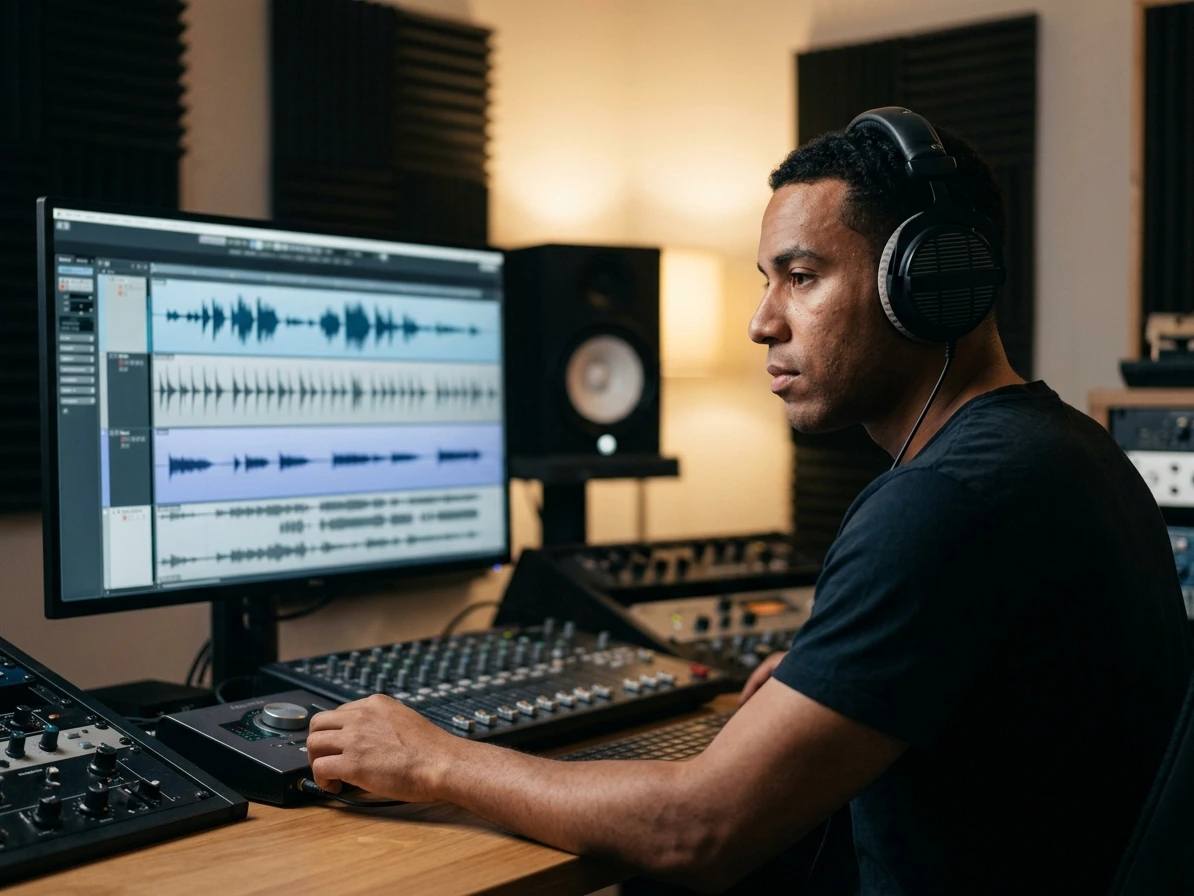
Separate vocals drums bass and other stems
With CraftMusic AI, the Stem Splitter turns one mixed song into the parts producers ask for most: vocals, drums, bass, and other instruments. Use the AI Stem Splitter to pull an acapella for a remix, isolate drums for groove study, remove vocals for an instrumental backing track, or hear the low end without the rest of the mix fighting it. If a separated vocal or tonal stem contains a clear single-note melody, use the Audio to MIDI Converter when you need editable notes.
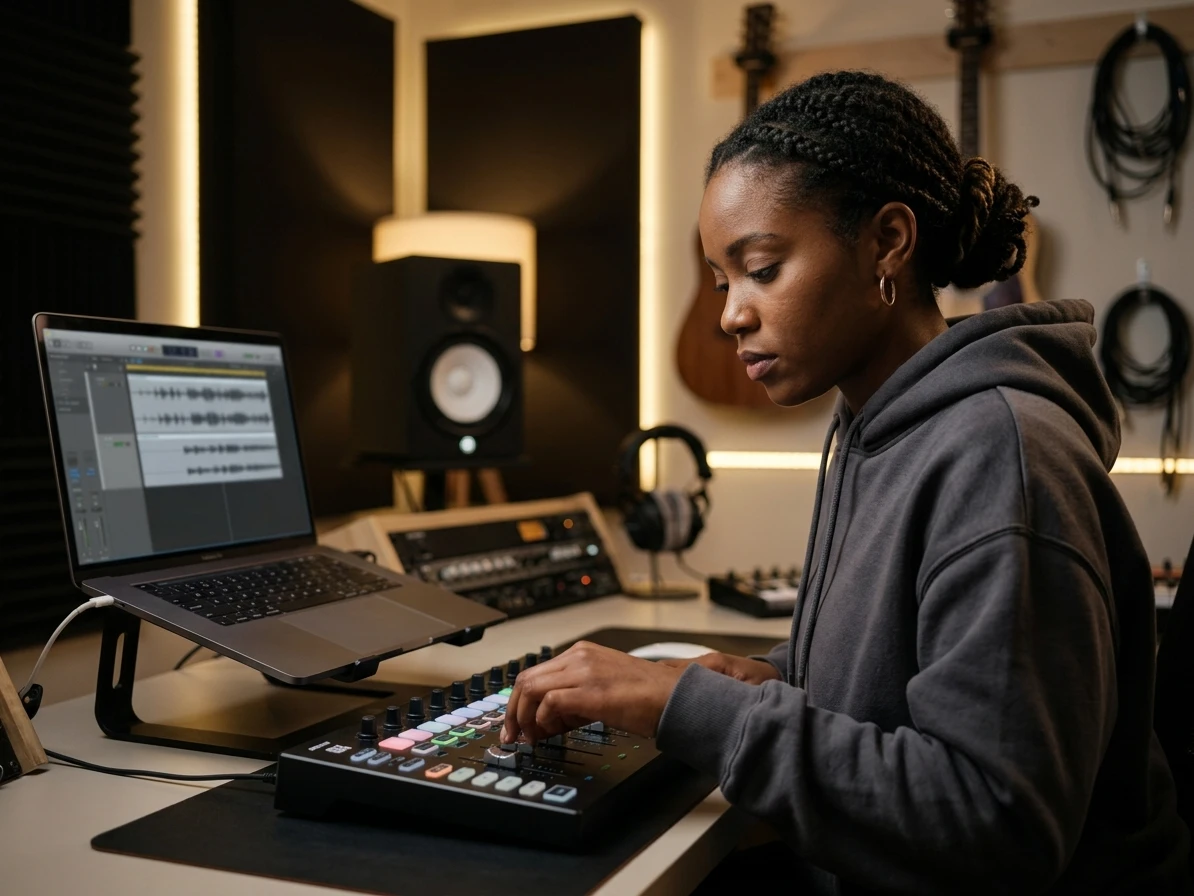
Choose the right stem mode for the job
Not every project needs the same split. Vocal mode is built for quick acapella extraction or instrumental creation, while 4-stem mode gives you the classic vocals, drums, bass, and other layout. Advanced multi-stem separation is available for supported AI music tracks, so the Stem Splitter can stay simple for beginners and useful for production sessions.
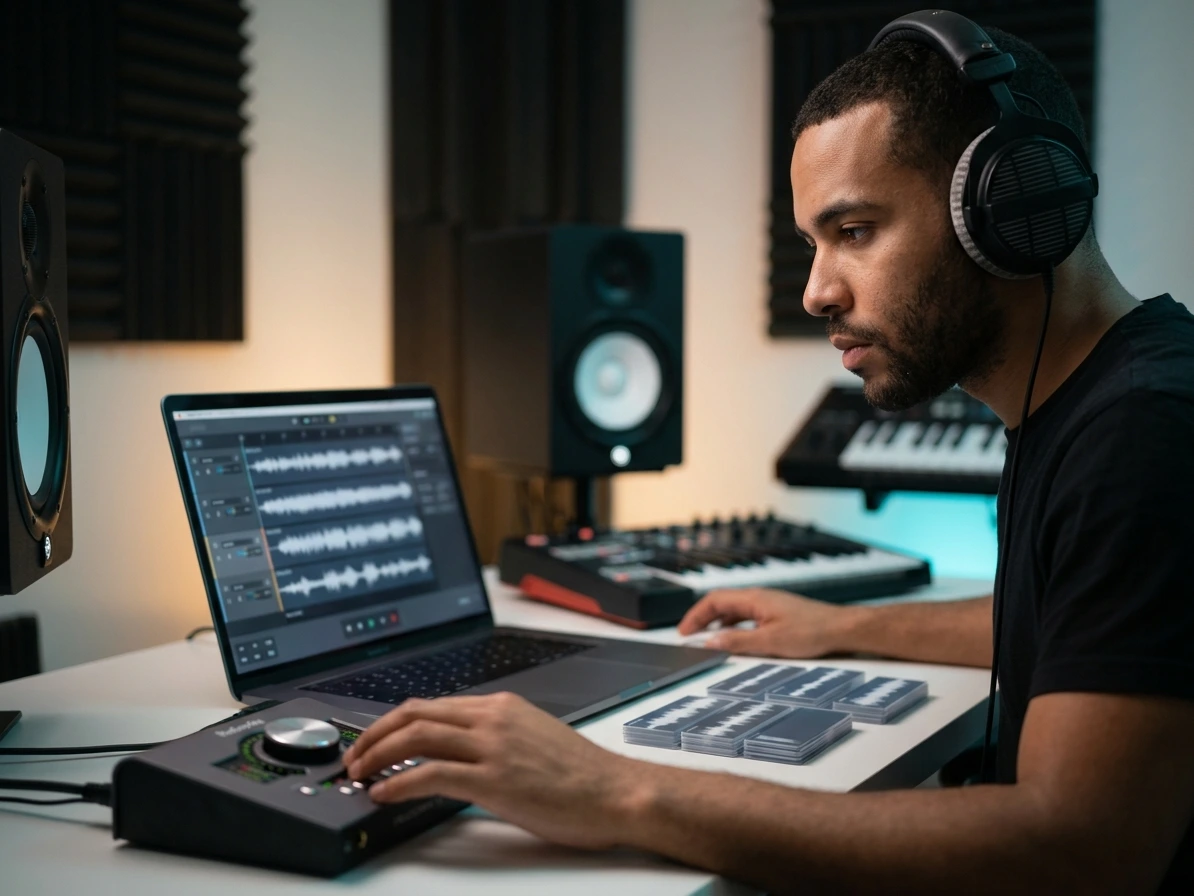
Preview and download DAW ready stems
A Stem Splitter is only useful when the result can move into your workflow. Preview each separated track, play the stem bundle, and download the files you want for remixing, sample chopping, karaoke tracks, rehearsal cues, or DAW editing. The online AI Stem Splitter keeps the upload to preview to download loop in one browser workspace.

Cleaner stems with honest source guidance
Source separation is powerful, but it is not magic. Our Stem Splitter works best with clear audio where the target part is easy to hear, and it helps reduce the busy manual work that usually follows imperfect splits. Use cleaner sources to lower bleed, artifacts, phase issues, and transient smearing before you commit the stems to a remix or client draft.
Who Gets the Most from Stem Separation
The AI Stem Splitter helps creators who need usable parts from finished songs for remixing, practice, teaching, or focused editing.

DJs and remixers
A remix idea can die while you search for official stems or rebuild a track by ear. The Stem Splitter gives you a vocal, drum, bass, or instrumental starting point in one browser workflow, so you can test a mashup, edit a transition, or build a club version before the session loses momentum.

Producers and sample makers
Sample work often needs one sound from a full mix, not the entire record. Use the AI Stem Splitter to isolate drums for groove reference, pull bass for low-end study, extract vocals for chopping, or separate other instruments before you slice, pitch, reverse, or rebuild the idea in your DAW.
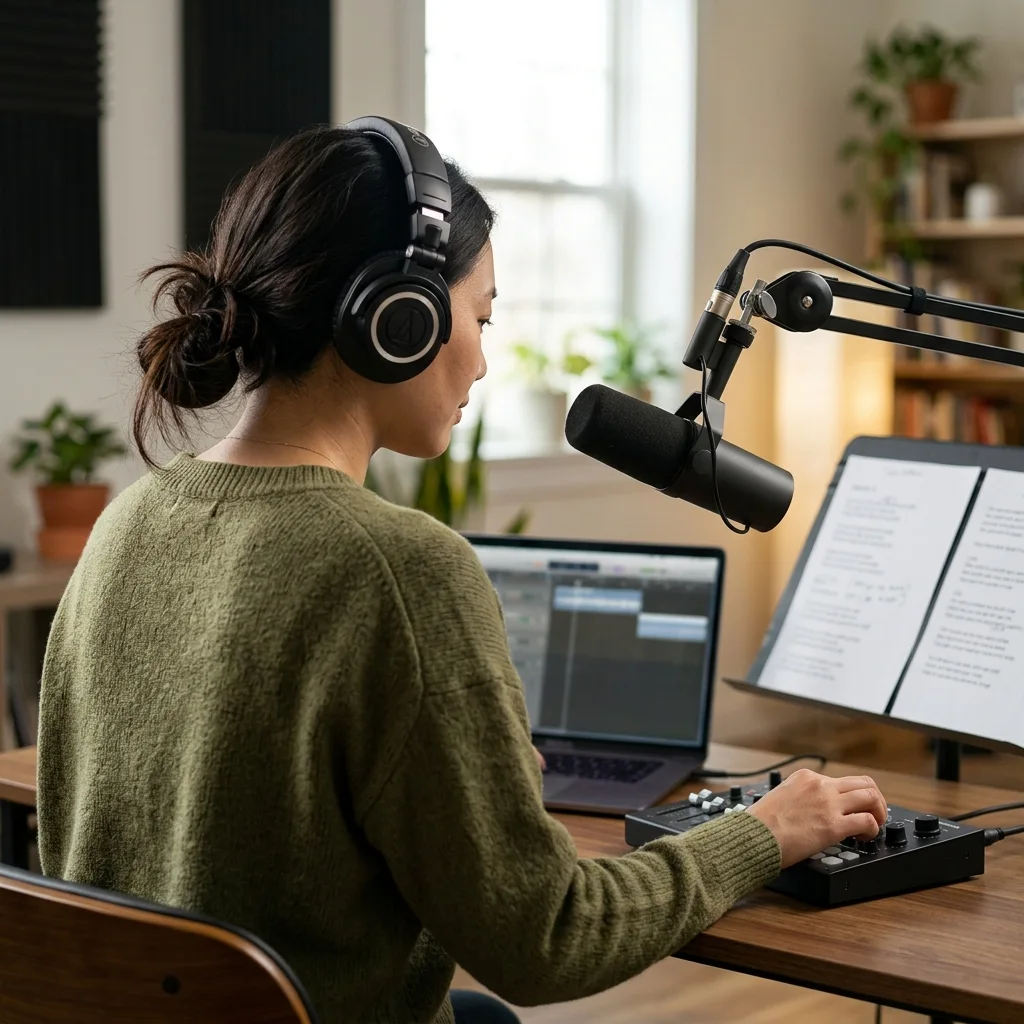
Karaoke and practice creators
Preparing practice tracks by hand can mean hours of searching, EQ tricks, and compromise. A vocal stem splitter helps you remove vocals for a backing track, isolate the singer for learning phrasing, or create rehearsal versions for students, bands, worship teams, and performers who need a fast practice file.

Educators and working musicians
Transcription and rehearsal move faster when each part can be heard on its own. Use the Stem Splitter to expose drums, bass, vocals, or other instruments for ear training, arrangement study, lesson examples, or band prep. The result gives you a focused listening reference before you write charts or record replacement parts.
AI Stem Splitter FAQ
Answers about stem separation, vocal removal, acapella extraction, instrumental tracks, upload formats, quality limits, downloads, and rights.
What is a Stem Splitter?
A Stem Splitter separates a mixed song into individual audio parts such as vocals, drums, bass, and other instruments. CraftMusic AI's Stem Splitter is built for creators who need usable stems for remixing, karaoke, rehearsal, sampling, or DAW editing without access to the original session.
How does CraftMusic AI's AI Stem Splitter work?
CraftMusic AI analyzes the source audio, runs AI stem separation, then returns separated tracks based on the mode you choose. You can use vocal separation for acapella or instrumental output, 4-stem separation for vocals, drums, bass, and other, or advanced separation for supported AI music tracks.
Can I split vocals drums bass and other instruments?
Yes. The main Stem Splitter mode separates a song into vocals, drums, bass, and other instruments. That 4-stem layout is familiar to producers because it covers the parts most often needed for remixes, practice tracks, sampling, and arrangement analysis.
Can I make an acapella or instrumental track?
Yes. Use vocal remover mode when you want to extract vocals as an acapella or remove vocals to create an instrumental backing track. Results depend on the mix, so clean recordings with centered vocals usually work better than noisy live audio or heavily layered masters.
What audio formats can I upload to the Stem Splitter?
The upload flow supports common audio formats including MP3, WAV, OGG, M4A, AAC, FLAC, and WMA. WAV or high quality source files often give the AI Stem Splitter more detail to analyze, but a clear compressed file can still produce practical stems.
How clean are AI stem separation results?
AI stem separation quality depends on the source. Simple, well-balanced recordings usually separate more cleanly, while dense mixes, heavy reverb, distorted guitars, crowd noise, and overlapping frequencies can leave artifacts or bleed. Treat the stems as a strong starting point and refine important parts inside your DAW.
Can I download the separated stems?
Yes. When a separation task is complete, you can preview the tracks and download available stems for your workflow. The Stem Splitter is designed for practical handoff into remix sessions, sample folders, karaoke preparation, rehearsal playlists, and production edits.
Can I use uploaded songs commercially after splitting stems?
Stem separation does not change the rights attached to the source audio. Only upload music you own, created, licensed, or have permission to process, and review your usage rights before releasing remixes, covers, samples, client work, or public content made from separated stems.
Is this an online stem splitter for songs?
Yes. CraftMusic AI works as an online stem splitter for songs: upload audio, choose a separation mode, preview vocals, drums, bass, and other stems, then download the parts you need for remixing, practice, sampling, or DAW editing.